> ## Documentation Index
> Fetch the complete documentation index at: https://docs.htmldocs.com/llms.txt
> Use this file to discover all available pages before exploring further.
# Getting Started
> Add htmldocs to any React/TypeScript project in minutes.
## Automatic Setup
The easiest way to setup htmldocs is to use our automatic setup script.
1. Run the following command in your terminal:
```bash npm theme={null}
npx htmldocs@latest init
```
```bash pnpm theme={null}
pnpx htmldocs@latest init
```
```bash yarn theme={null}
yarn dlx htmldocs@latest init
```
```bash bun theme={null}
bunx htmldocs@latest init
```
This will prompt you for your project name and create a new folder in your current directory.
3. After switching to the folder, you can start the development server by running:
```bash npm theme={null}
npm run dev
```
```bash pnpm theme={null}
pnpm dev
```
```bash yarn theme={null}
yarn dev
```
```bash bun theme={null}
bun dev
```
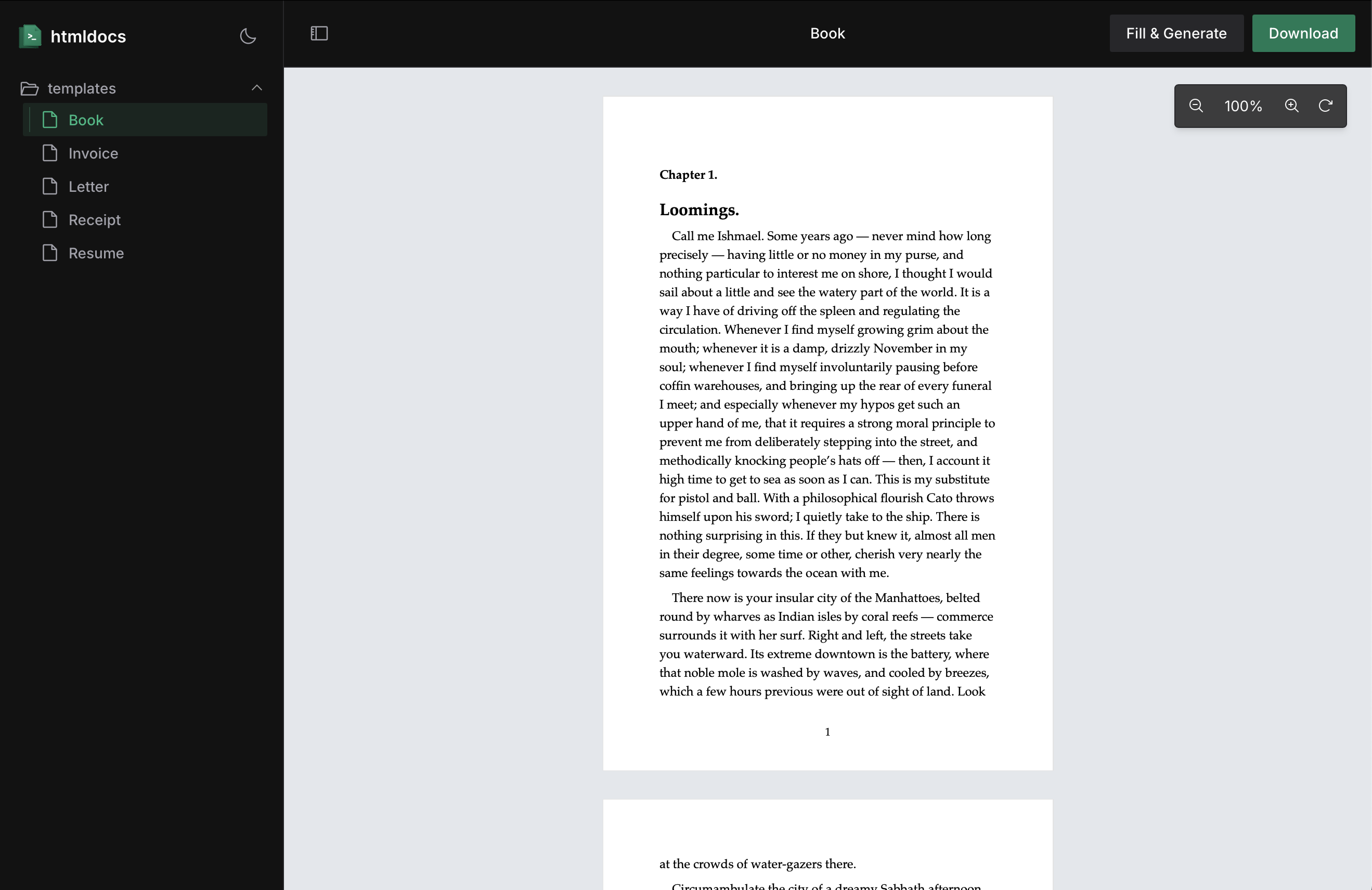
This will start a live preview of your documents in your browser.
## Manual Setup
If you prefer to set up htmldocs manually, follow these steps:
1. Install htmldocs in your project:
```bash npm theme={null}
npm install htmldocs @htmldocs/react @htmldocs/render
```
```bash pnpm theme={null}
pnpm add htmldocs @htmldocs/react @htmldocs/render
```
```bash yarn theme={null}
yarn add htmldocs @htmldocs/react @htmldocs/render
```
```bash bun theme={null}
bun add htmldocs @htmldocs/react @htmldocs/render
```
2. Add the following script to your `package.json`:
```json theme={null}
{
"scripts": {
"dev": "npx htmldocs@latest dev",
}
}
```
3. Create document template
Create a new folder called `documents` in your project. Then, create a new file called `Book.tsx` in the `documents` folder and include the following code:
```tsx theme={null}
import { Document, Footer } from "@htmldocs/react"
import MarkdownIt from 'markdown-it'
import "~/index.css"
const MARKDOWN_CONTENT = `
# The Art of Programming
## Chapter 1: Fundamentals
Programming is both a science and an art. It requires logical thinking and creative problem-solving. In this book, we will explore the principles that make software development a fascinating discipline.
### 1.1 The Programming Mindset
To become an effective programmer, one must develop a particular way of thinking. This includes:
- Breaking down complex problems into manageable parts
- Thinking algorithmically about solutions
- Understanding data structures and their applications
- Embracing continuous learning and adaptation
The journey of a programmer is one of constant growth and discovery.
`
const md = new MarkdownIt({ html: true })
function Book() {
const html = md.render(MARKDOWN_CONTENT)
return (
)
}
Book.documentId = "book"
export default Book
```
4. Run the development server by running:
```bash npm theme={null}
npm run dev
```
```bash pnpm theme={null}
pnpm dev
```
```bash yarn theme={null}
yarn dev
```
```bash bun theme={null}
bun dev
```
This will start a live preview of your documents in your browser.
 ## Manual Setup
If you prefer to set up htmldocs manually, follow these steps:
1. Install htmldocs in your project:
## Manual Setup
If you prefer to set up htmldocs manually, follow these steps:
1. Install htmldocs in your project: